How to Manage Dual Instagram & Facebook on Android - Ultimate Guide
Introduction
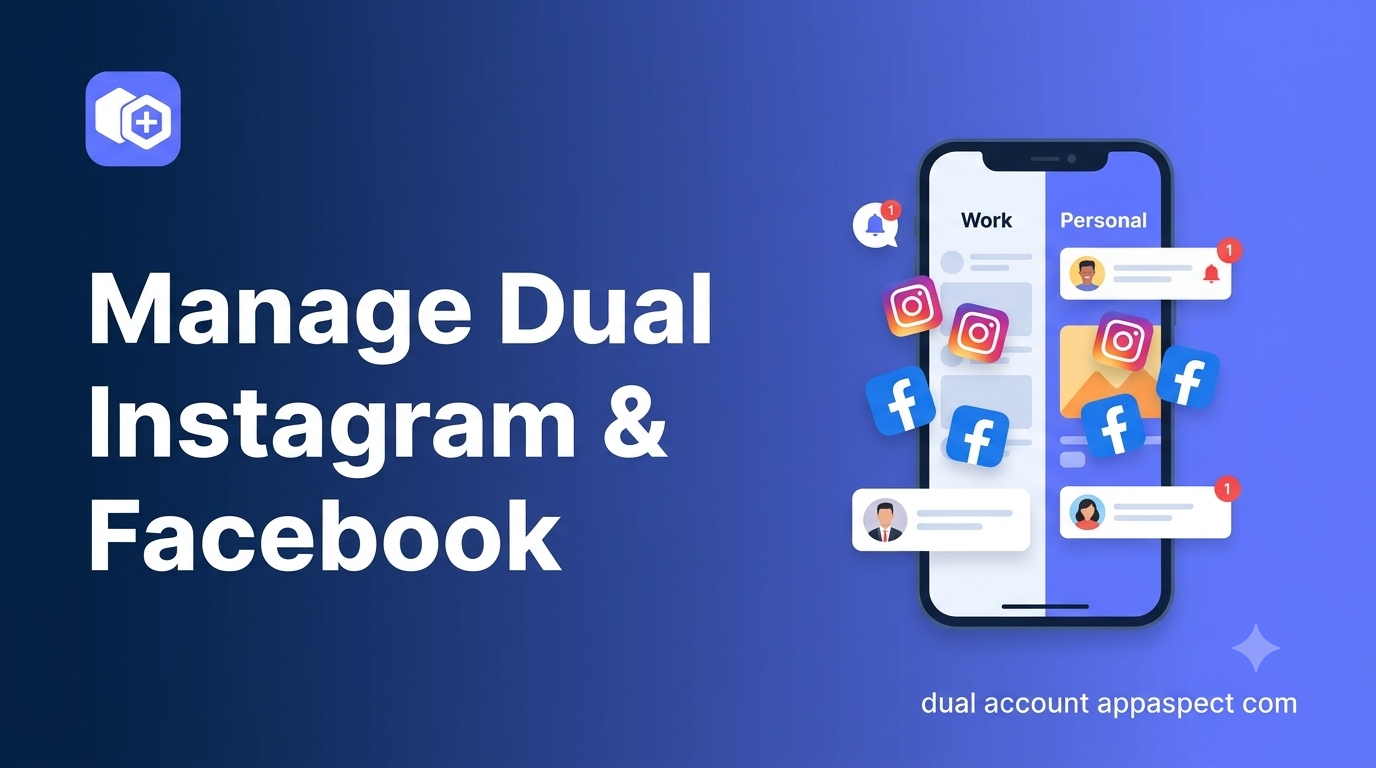
Managing dual Instagram and Facebook on Android lets smartphone multitaskers keep personal and professional lives separate without juggling two devices. In this guide you’ll learn how to run two Instagram accounts Android style, how to clone Facebook safely, and which performance tweaks keep both apps humming. By the end, you’ll be able to switch between profiles in seconds and protect your data with a single, reliable tool.

Why Parallel Space Is the Safest Way to Run Two Instagram Accounts
Parallel Space provides a sandboxed environment that isolates each social app from the rest of your system. This isolation means the cloned Instagram cannot access the data of the original instance, reducing cross-contamination of cookies, login tokens, and cached media.
- Secure container - each cloned app runs in its own virtual space, preventing one account from reading the other’s messages.
- AI-powered tools - the utility app includes intelligent suggestions for media management, helping you keep work posts distinct from personal stories.
- Private browsing - when you open Instagram inside Parallel Space, your search history stays inside the container, not in the main browser cache.
Because the sandbox lives entirely on your device, there’s no need for external accounts or cloud-based mirroring that could expose credentials. For anyone who needs to keep a brand page separate from a personal feed, how to manage dual offers the strongest on-device privacy.
Step-by-Step Setup for Dual Instagram and Facebook on Android
Getting both Instagram and Facebook running side-by-side is a matter of cloning, logging in, and configuring notifications. Follow these numbered steps for a smooth rollout.
- Download Dual Accounts - Parallel Space from the official site.
- Open the app and tap Add App; select Instagram from the list.
- After the clone finishes, tap the new Instagram icon inside Parallel Space and log in with your second account credentials.
- Repeat steps 2-3 for Facebook, creating a second Facebook instance.
- Configure notification channels: go to Settings → App notifications → Parallel Space → Instagram (Clone) and enable alerts. Do the same for the Facebook clone.
- Set default launch: long-press the cloned icons and choose “Add to Home screen” for quick access without opening Parallel Space each time.
[!TIP] Keep the original Instagram and Facebook apps on the home screen for quick reference; the clones are best used for the secondary accounts you want to keep separate.
Parallel Space Instagram Facebook tutorial video
If you prefer visual guidance, the official website hosts a short tutorial that walks through each tap. The video demonstrates how to switch between the two Instagram instances with a single swipe, saving you precious minutes during a busy day.
Performance Tips: Keep Both Apps Running Smoothly
Running two heavyweight social apps can strain memory and battery, but a few tweaks keep the experience fluid.
- Limit background sync: Within each cloned Instagram, go to Settings → Account → Data Usage and turn off “Upload Stories in Background.” Do the same for Facebook.
- Adjust image quality: Lower the upload resolution to 720p for the secondary accounts; this reduces CPU load and network traffic.
- Enable Android’s battery optimization for Parallel Space itself, then whitelist the cloned apps so the system doesn’t kill them while you’re scrolling.
- Clear cache regularly: Open Parallel Space → Settings → Storage → Clear Cache for each clone once a week to prevent bloat.
[!IMPORTANT] Android’s “Doze” mode can pause background processes; granting an exemption for Parallel Space ensures your dual accounts stay online even when the screen is off.
Privacy Benefits of Isolating Work and Personal Social Media
Separating accounts isn’t just about convenience-it’s a privacy safeguard. When you keep a corporate Instagram page inside Parallel Space, the app cannot read contacts or location data from your personal profile.
Key privacy advantages
- No shared login tokens - each instance stores its authentication separately, so a breach in one does not compromise the other.
- Independent permissions - you can deny the cloned Facebook access to your microphone while allowing the primary app to use it for video calls.
- Secure media vault - Dual Accounts - Parallel Space includes a private media manager that encrypts photos and videos stored for the work account, keeping them invisible to the personal gallery.
These features align with corporate BYOD (bring your own device) policies that require clear data boundaries between employee and employer usage.
FAQs
Can I run two Instagram accounts on one Android phone?
Yes. By cloning Instagram inside Parallel Space you create a separate instance that logs in with a different username, allowing you to switch instantly without logging out.
Does Parallel Space work with Facebook?
Absolutely. The utility app supports cloning Facebook, giving you a parallel container where you can maintain a second profile or a business page alongside your personal account.
Will using Parallel Space drain my battery?
Running two apps will increase power consumption, but enabling battery optimization for the host app and limiting background sync keeps the impact minimal. Most users report a 5-10% increase compared to a single account setup.
Is my data safe when using dual accounts on Android?
Data stays inside the sandboxed environment created by Parallel Space. The app does not share your credentials with external services, and its private browsing mode ensures no cross-app tracking.
How to switch between two Instagram accounts instantly?
Tap the Instagram icon on your home screen to open the primary app, then tap the cloned Instagram shortcut added by Parallel Space. You can also use the built-in “Switch Account” button inside the cloned app’s profile page for a one-tap toggle.
Key Takeaways
- Use Dual Accounts - Parallel Space to clone Instagram and Facebook safely.
- Follow the step-by-step setup to get two accounts running without conflict.
- Optimize performance by limiting background sync and clearing cache regularly.
- Isolate work and personal data for stronger privacy and compliance.
- Leverage quick-switch shortcuts to move between accounts in seconds.
Conclusion
Managing dual Instagram and Facebook on Android is no longer a technical juggling act. With the right cloning tool, you can keep personal and professional presences distinct, maintain privacy, and enjoy smooth performance-all from a single device. Implement the steps above, fine-tune your settings, and you’ll master multitasking on Android without compromise.
Get Started with Dual Accounts - Parallel Space
Ready to try it yourself? Dual Accounts - Parallel Space lets you separate work and personal social feeds, protect your data, and switch accounts instantly. Download the app today and experience hassle-free dual-social management on your Android phone.
Further Reading
- Instagram Help Center - Managing Multiple Accounts - Official guide on using multiple Instagram profiles.
- Facebook Business Help Center - Page Roles and Access - How to manage separate business pages on one device.
- Android Developers - App Sandbox Overview - Technical details on Android’s app isolation mechanisms.
- National Institute of Standards and Technology - Mobile Device Security - Best practices for securing personal and corporate data on smartphones.